Cracking the Code: How to Actually Read Your Dive Computer
20 May 2026practical
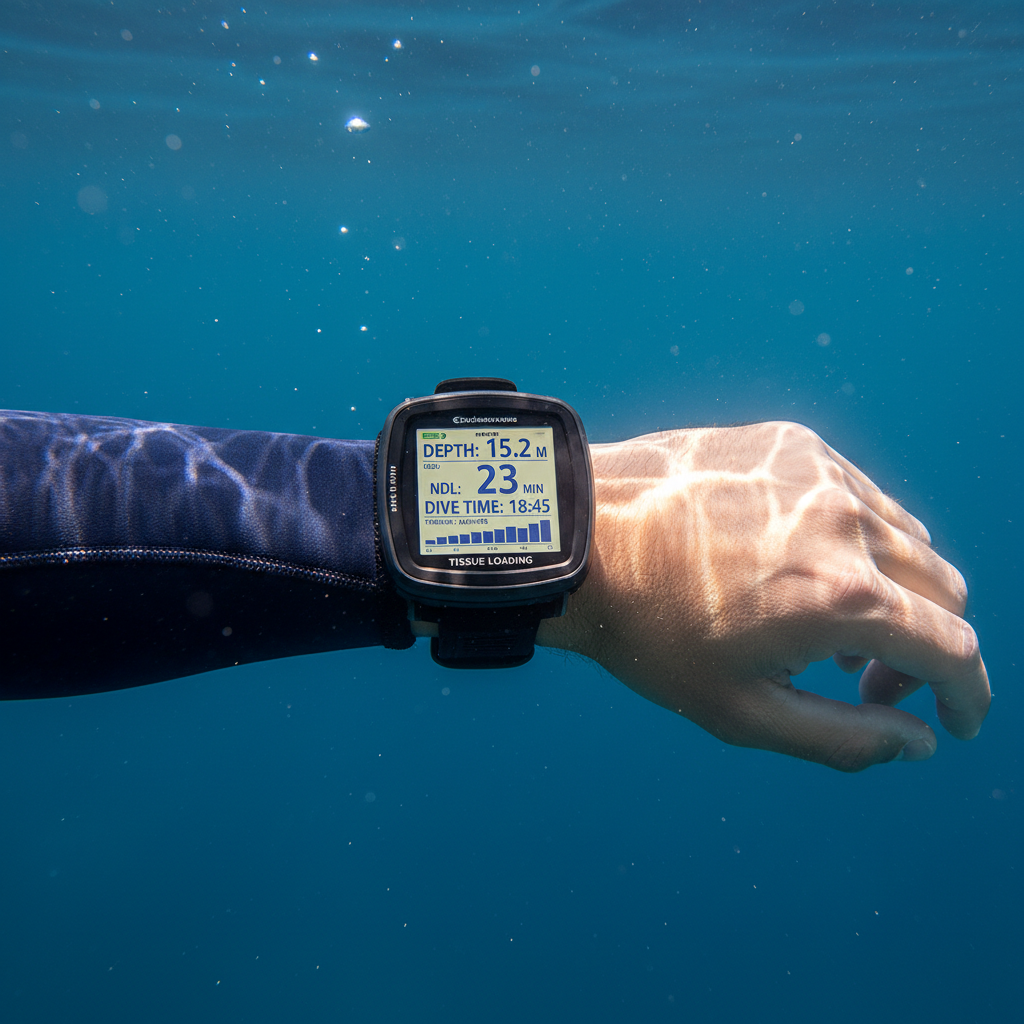
Your dive computer is the most important piece of safety equipment on your wrist — but only if you know what it's telling you. Here's a practical, no-nonsense guide to understanding every number, graph, and warning on your screen.

Why Your Dive Computer Is More Than a Fancy Watch
There's a moment most new divers experience at about 15 metres — you glance at your wrist, see a cascade of numbers, acronyms, and a blinking bar graph, and have absolutely no idea what any of it means. You're not alone. Dive computers are extraordinary pieces of engineering, but they're only useful when you understand the language they speak.
At its core, a dive computer does one critical job: it tracks your exposure to nitrogen (and sometimes helium, in technical models) and tells you how much time you have before ascending becomes dangerous. It does this by running a decompression algorithm — a mathematical model based on decades of hyperbaric research — in real time, every few seconds, updating your no-decompression limit (NDL) as your dive evolves. Models like the Bühlmann ZHL-16 and RGBM (Reduced Gradient Bubble Model) are among the most widely used algorithms underpinning modern consumer dive computers.
Beyond decompression tracking, your dive computer also monitors depth, time, water temperature, ascent rate, and in many modern units, tank pressure via a wireless transmitter. Think of it less like a watch and more like a co-pilot — one that never gets distracted, never panics, and has read every decompression table ever published.
The Big Five: Key Displays You Must Understand
Every dive computer looks slightly different depending on brand and model — a Garmin Descent, Shearwater Teric, Suunto D5, or Oceanic Geo 4.0 will all have their own layouts — but the core data points are universal. Here's what to look for and what it means.
**Current Depth** is usually displayed prominently, measured in metres or feet. This is your real-time depth pulled from a pressure transducer. **Maximum Depth** for the current dive is also tracked and stored — useful for your logbook and for understanding your nitrogen loading. **Dive Time** counts elapsed time from when you submerged, typically triggering automatically when the computer detects water pressure greater than about 1.2 metres.
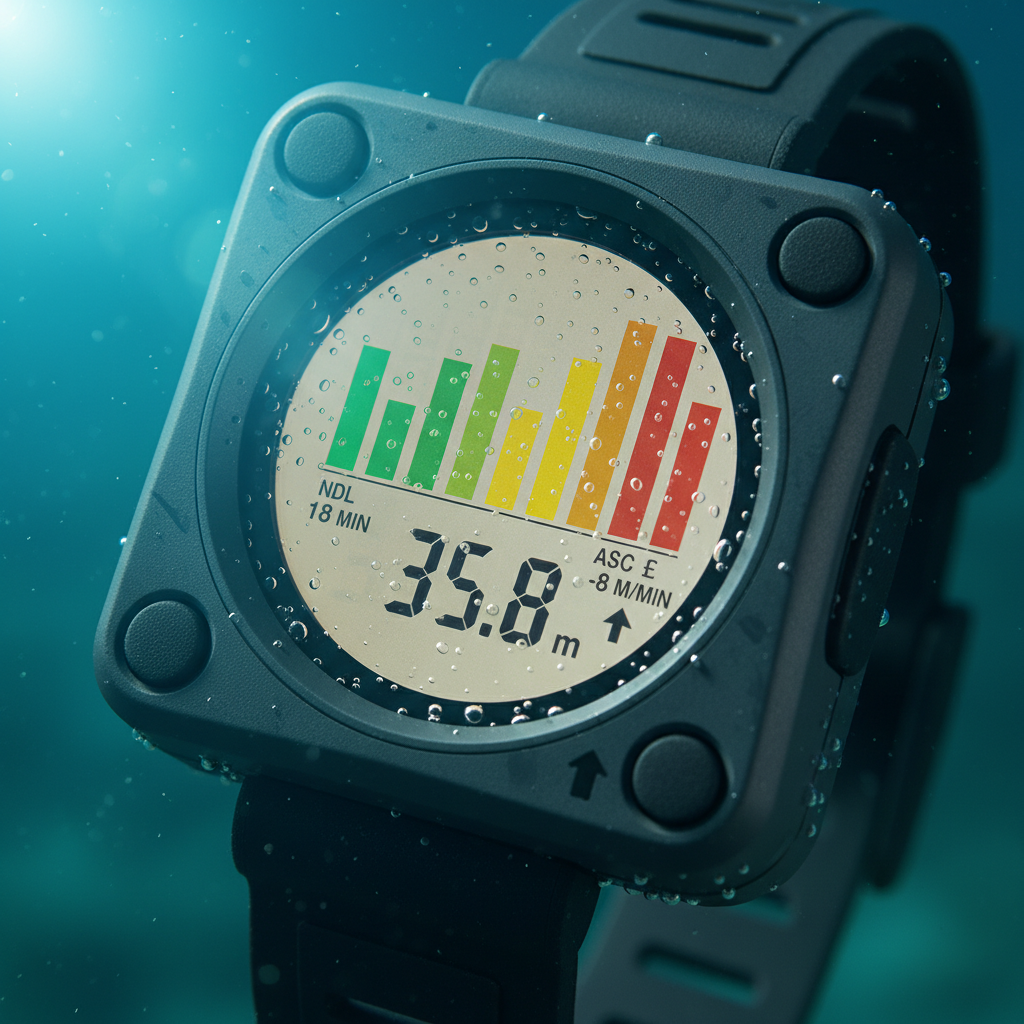
**No-Decompression Limit (NDL)** — sometimes labelled 'No Deco' or 'NDL' — is arguably the most important number on the screen. It tells you how many minutes you can remain at your current depth before you'd be required to make mandatory decompression stops on the way up. As you descend deeper or stay longer, this number counts down. If it reaches zero, you've entered 'deco obligation' territory — the computer will switch modes and show you required stop depths and times. For recreational divers, the goal is always to surface before the NDL hits zero. **Ascent Rate Indicator** is typically a vertical bar or arrow that turns red if you're going up too fast — the standard safe ascent rate is 9–18 metres per minute, and most computers will alarm loudly if you exceed this. Finally, **Temperature** gives you real-time water temp, which matters for thermal protection planning and marine life identification.
Tissue Bars, Ceiling Depths, and the Deco Mode You Hope to Never Need
Many mid-range to advanced dive computers display a tissue loading bar graph — usually a series of 8 to 16 bars representing different theoretical tissue compartments in your body, from fast tissues (blood, brain) to slow tissues (tendons, bones). Each compartment absorbs and releases nitrogen at different rates. The tallest bar indicates your 'controlling tissue' — the one most saturated with nitrogen and therefore the one setting your NDL. Watching this graph during a dive gives you an intuitive sense of your cumulative nitrogen load, not just your current depth.
If you do exceed your NDL — through poor planning, getting caught up in something amazing (it happens), or a miscommunication with a buddy — your computer transitions into decompression mode. It will display a 'ceiling depth', which is the shallowest you can safely ascend to at that moment, and a required stop time at that depth. Never ignore this. Ascending through a ceiling without completing the stop dramatically increases your risk of decompression sickness (DCS), where dissolved nitrogen forms bubbles in your tissues and bloodstream — a genuinely dangerous and potentially life-altering condition.
For recreational divers who stay within NDLs, a safety stop at 5 metres for 3–5 minutes is still strongly recommended as standard practice at the end of every dive. Many computers will remind you of this automatically, switching to a 'safety stop' countdown once you reach 5–6 metres on ascent. Think of it as cheap insurance — it gives your body extra time to off-gas nitrogen before you hit the surface.
Dive Planning Mode and Surface Interval: Using Your Computer Between Dives
A feature many divers underuse is the planning or 'plan' mode on their dive computer. Before you enter the water, you can use this function to preview your NDL at a target depth — for example, checking that a planned 30-metre dive gives you at least 15–20 minutes of bottom time. This is the modern equivalent of consulting a dive table, and it takes into account any residual nitrogen from previous dives in the same day.
After surfacing, your computer continues working. It tracks your **surface interval** — the time you spend above water between dives — and continuously updates your tissue saturation as nitrogen off-gases. The longer your surface interval, the more your NDL will improve for the next dive. Most computers display a 'no-fly' timer as well, typically a minimum of 12–24 hours after diving before boarding a pressurised aircraft, in line with DAN (Divers Alert Network) and PADI recommendations. Ignore this at your own serious risk — cabin pressure at altitude, even in pressurised cabins, is equivalent to around 2,000–2,500 metres elevation and can trigger DCS from residual nitrogen.
If you're doing multiple dives in a day — common on liveaboards or day trips off the Great Barrier Reef or the Coral Sea — treat your computer's surface interval data with respect. The numbers it's showing you at dive two and three are shaped heavily by what you did on dive one. Deeper first dives, longer bottom times, and short surface intervals are a combination that will eat your NDL fast on subsequent dives.

Alarms, Errors, and What to Do When Your Computer Acts Up
Modern dive computers have multiple alarm systems — audible beeps, vibrations, and visual flashes — triggered by specific events: exceeding your NDL, ascending too fast, entering deco obligation, low battery, or hitting a preset maximum depth limit. Learn what each alarm looks and sounds like before you get in the water. Reading your manual (yes, the actual manual) is genuinely worth the hour it takes. Different brands use different symbols, and there's no universal standard.
One scenario that trips up divers is a **computer lockout** — if you surface with a deco obligation unsatisfied, most computers will lock you out of diving for a penalty period, typically 24 hours. This is a safety feature, not a punishment, and overriding it is not advisable. Similarly, if your computer loses battery mid-dive, you should end the dive conservatively, complete a generous safety stop, and treat the rest of the day as a single-dive day with extended surface intervals.
Finally, always dive with your computer set to the correct mode. Most modern computers have profiles for air, nitrox (enriched air), and sometimes gauge mode. If you're diving EAN32 (32% nitrox) and your computer is still set to air, it's running the wrong algorithm for your actual gas — and will give you overly conservative NDLs at best, incorrect deco calculations at worst. Set your oxygen percentage before every dive, verify it against your tank analysis, and you're good to go.
Practical Tips for Building Real Computer Confidence
The best way to get fluent with your dive computer is to engage with it actively on every dive, not just glance at it when your instructor tells you to. Before descending, do a full display check on the surface — note your starting NDL at your target depth, confirm your gas mix is set correctly, and check battery level. During the dive, check depth, NDL, and ascent rate at least every few minutes, and every time you change depth significantly.
After each dive, review the post-dive data. Most computers display a dive summary showing max depth, average depth, dive time, minimum temperature, and NDL remaining at surfacing. Many also connect via Bluetooth or USB to dive log apps — Shearwater Cloud, Garmin Connect, Subsurface, and MacDive are all popular options — where you can see a full depth profile graph and tissue loading history. Reviewing this data teaches you pattern recognition: you'll start to notice how a deeper first dive tanks your NDL on dive two, how cold water might warrant extra conservatism, or how your favourite reef at 18 metres gives you a very comfortable margin.
And if you ever feel uncertain about what your computer is telling you mid-dive? Ascend slowly and end the dive. No fish, no coral formation, no underwater photo is worth gambling with your nitrogen load. Your dive computer is speaking to you constantly — once you know the language, it's one of the most reassuring conversations you'll ever have underwater.